Forma guide · 0.2.0-dev.8 preview
This guide covers the current notarized Forma 0.2.0-dev.8 preview and browser demo. The current register records 1,045 implemented, 164 partial and 813 planned requirements, 2,022 in total across 60 categories. These are implementation statuses, not claims of complete Figma parity or completed reference verification. Search the current register or download it.
Home and the local file library
Open Home for Recent, All files, Drafts, Starred, Pinned, Archive and Trash. Search titles, filter by workspace or local folder, choose thumbnails or a list, and sort by name or dates. Flat folders are app metadata; moving a project there does not move an exported Finder file. A file’s menu supports open, rename, independent duplicate, move, star, pin, archive and Trash. Organization changes expose a session-local Home Undo, separate from editor Undo.
Import projects validates every .oui/JSON input before writing the batch. Files receive new document identities, so importing cannot overwrite the existing library original. Restore files from Trash, or explicitly confirm permanent deletion after closing them. Export backups before clearing app/browser data; this is a local library with no cloud synchronization. Organization, import limits and concurrency.
Responsive grid flow
Select a container and choose Auto layout → Grid. Expand Column tracks or Row tracks to choose fixed pixels, fractional fill or hug content with minimum and maximum sizes. Set gaps and padding, then select a direct child for explicit row/column placement, row/column spans and cell alignment. Automatic placement follows layer order; occupied explicit cells reserve space first.
With a grid selected, drag a track edge to preview and commit a fixed size. Focus an edge and use arrows, Shift or Option for supported increments; Escape cancels. Track edits use Undo and persist in .oui. Layout is bounded, and track reordering, cell swapping and complete Figma migration semantics remain unfinished. Track sizing and grid limits.
Mac document windows
In the native development app, creating a workspace opens a separate window. File Open accepts multiple projects; an already open path or document identity focuses its window. Native menu commands target the key document. Closing a dirty document asks Save, Cancel or Don’t Save; a failed or cancelled save does not approve closing. Reopen Closed Window and session restoration depend on available recovery or saved files.
Windows share the local library and preferences, while each owns its document state. There is no cloud merging or native document-tab system. Browser Home opens in its current editor rather than creating AppKit windows. Window lifecycle and recovery safeguards.
Design, prototypes and character formatting
The editor extends Design with editable curves and live booleans, paint/stroke/effect stacks, responsive layout, live component instances/variants, local variables/styles, guides/snapping and a motion timeline. Numeric inspector fields accept expressions such as 120 + 8 or /2; invalid expressions leave the stored value intact.
In Prototype, add ordered actions for navigation, back, HTTP(S) links, overlays, scroll-to, variant changes, variable updates and conditional branches. Author a starting flow and use Present for local playback, transitions, overlay behavior and variable-state inspection. Preview state stays separate from artwork. Hosted prototype sharing and complete nested scrolling remain absent. Prototype details and limits.
Select a text layer, open Character formatting, and select text in Rich text content. Apply formatting to that range, clear overrides or add an HTTP(S) link. Axis/feature tags require a font that supports them. Character formatting, supported rich clipboard content and Undo/Redo persist in .oui. The canvas inline editor remains plain text. Rich text guide.
Review SVGs before importing
Choose File → Place image or SVG, or drop an SVG onto the Design or Whiteboard canvas. The Import SVG dialog previews the supported editable result, dimensions, layer count and any reductions. Choose Import editable layers, Import sanitized visual asset, or Cancel SVG import. Nothing is appended until confirmation, and the whole editable import is one Undo action.
The editable subset includes shapes, paths, groups, supported text/tspan styles, local use/symbol references, supported gradients, embedded raster images and simple rectangular clips. Unsupported masks, filters, stylesheets and other content produce notices and may be omitted. The sanitized visual route also strips unsupported markup and links and may change appearance. Neither route promises a full SVG or Figma round trip. The Slides image picker currently accepts raster images. Supported input and reductions.
Reveal artwork with masks
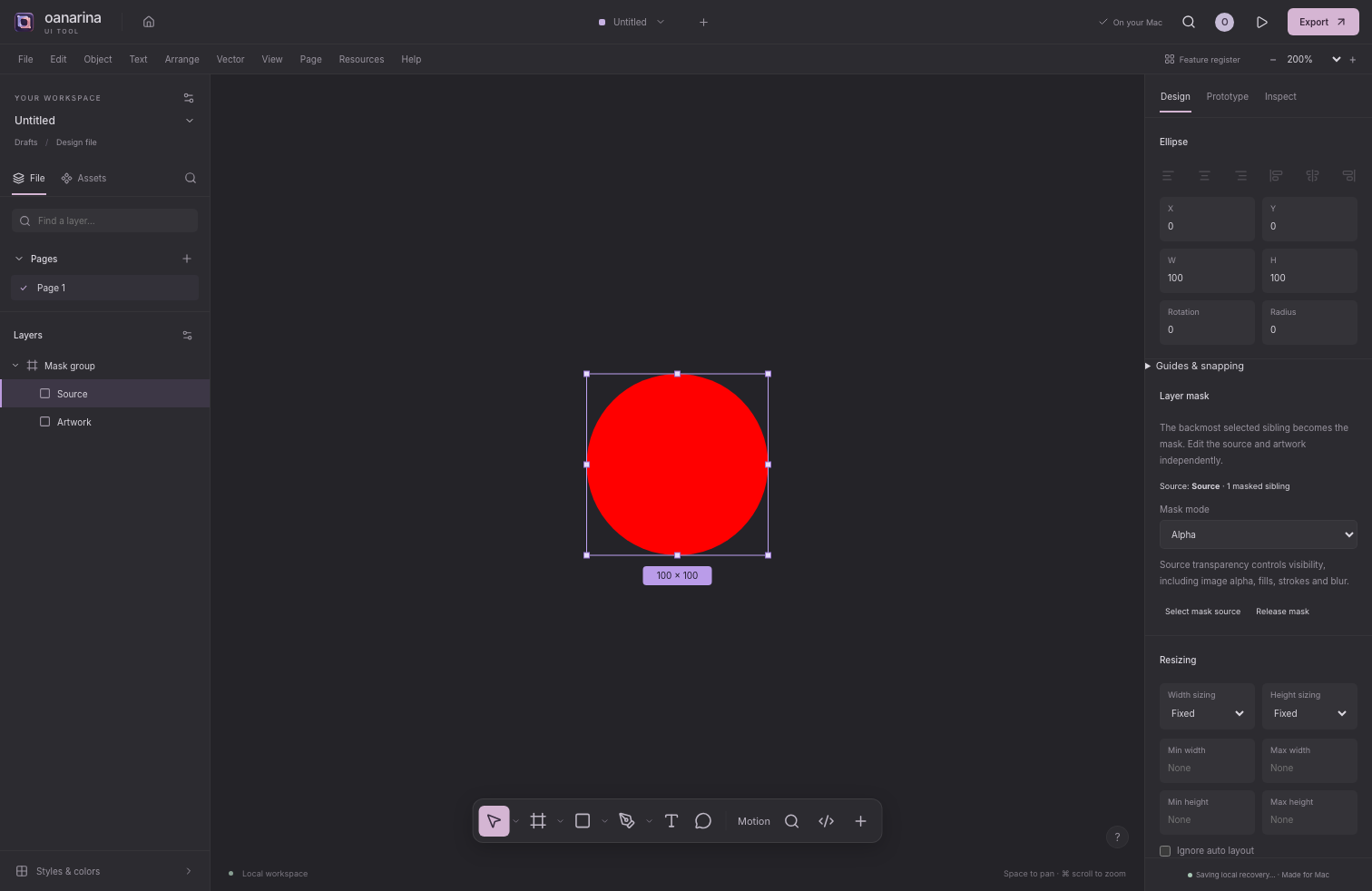
Select unlocked sibling layers and choose Use as mask in the inspector or Object menu, or press Control Command M. The backmost selected sibling becomes the source; a multi-layer selection forms a mask group. Choose Alpha for transparency, Vector for opaque painted geometry, or Luminance for brightness and transparency. Text, image alpha, gradients, strokes and group geometry can define visible regions. Alpha masks also use the existing blur/effect renderer.
Move or resize the source and target artwork independently. Use Select mask source from a target, or Release mask to reveal concealed artwork. Edits support Undo/Redo and .oui persistence. SVG and raster exports render actual mask coverage. Mask-specific outline view, specialized tree indicators, mode hover preview and exact nested Figma composition parity remain unfinished. Mask behavior and limits.
Navigate and select nested artwork
Click artwork to select its outer parent; Command-click deep-selects the hit layer, and double-click descends one owner level. With the design canvas focused, Enter selects immediate children, Shift Enter selects parents, and Tab/Shift Tab cycle siblings. Enter on text opens the inline editor. Inspector controls keep normal text editing and focus traversal.
In the Layers panel, Shift-click selects the contiguous visible range and Command-click toggles individual rows. Arrow keys navigate and expand/collapse focused tree rows. Search finds deep descendants and reveals their ancestor path. The Edit menu and action search include same-fill, same-stroke, same-text-property and same-component selection. Matching is local to the current page; mixed text ranges use exact interval/style comparison. This does not include Figma’s full structural matching or keyboard box-selection cursors. Selection behavior and keyboard details.
Organize the layer tree
Drag a layer or existing multi-selection onto the upper/lower edge of another row to reorder it, or into the middle of an ordinary container to reparent it. The page-root drop target also works as a button for the selected layers. Transformed owner changes preserve world geometry where the model can represent it; unsupported skew, locked hierarchies, managed instance children and invalid cycles are rejected before editing. Flow layout can arrange children after a drop.
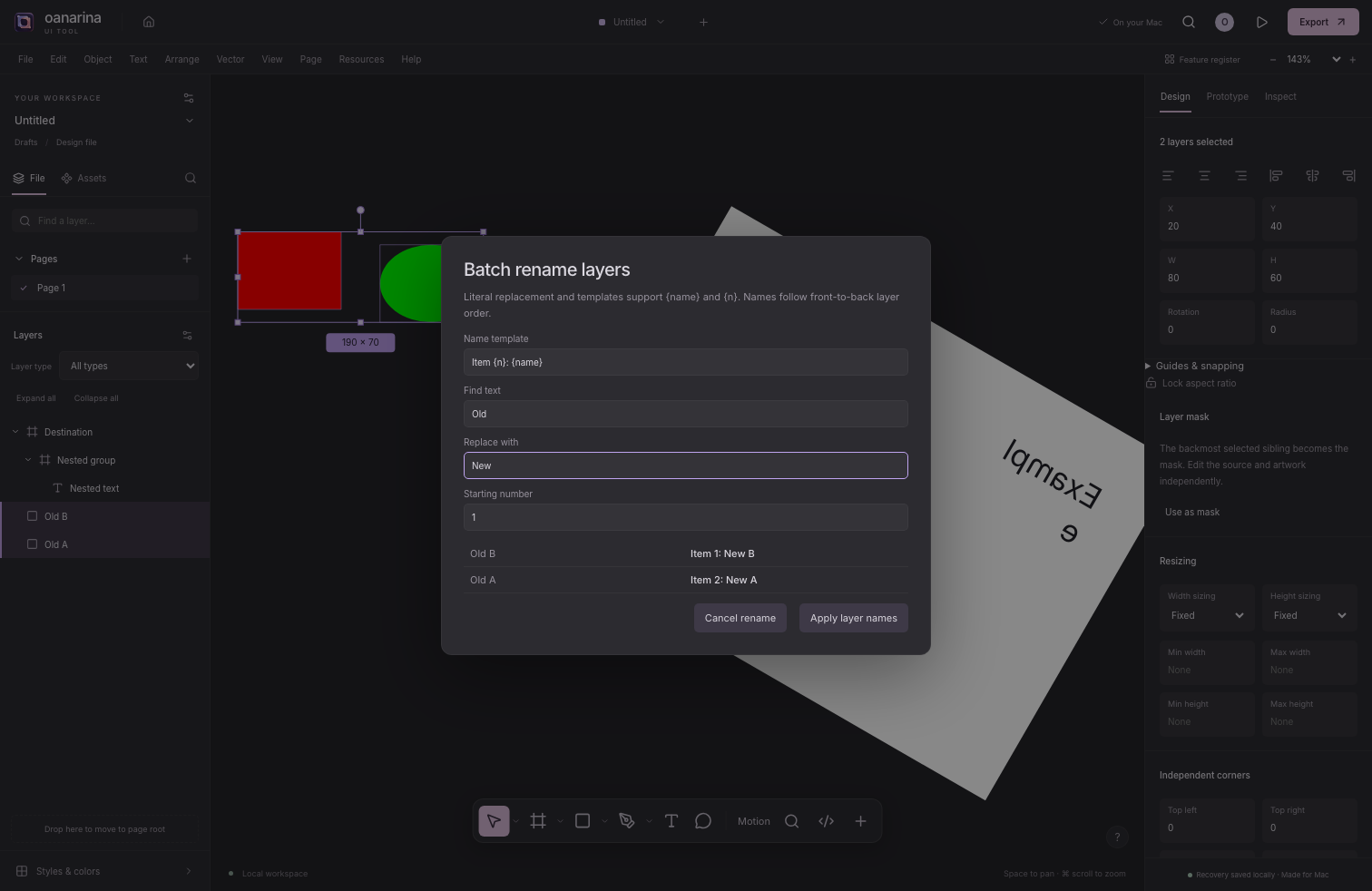
Use Expand all/Collapse all, a layer-type filter, or right-click/Shift–F10 for scoped descendant controls and selection actions. Batch rename… previews literal find/replace and templates containing {name} and {n}; Apply changes the selection in one Undo step. In the layer tree, Shift selects visible ranges and Command toggles rows. Keyboard drag-and-drop, hover expansion and large-tree virtualization remain separate work. Structural editing and safeguards.
Drag the rotation handle to rotate a selection; hold Shift to use the chosen rotation snap increment. Lock aspect ratio persists on each layer and constrains width/height edits and pointer resizing. Mixed selections retain each locked layer’s own ratio. Hold Option while resizing to grow around the same world center, including under supported transformed parents.
A single child’s alignment buttons use its parent axes; multiple selected roots normally use world-space selection bounds. Hold Shift on an alignment button, or use an explicit parent-alignment command, to align sibling groups to their own parents while preserving group spacing. Distribution uses selection bounds. Flow-managed children use their parent’s layout controls; unsupported affine skew is rejected atomically. These controls do not establish every Figma scale or snapping behavior. Canvas transforms and current limits.
Set local defaults and navigation
Open File → Preferences… or press Command ,. Customize small/large nudge steps, Shift-rotation increments, drawing-tool retention, hover and selection dimensions, wheel zoom speed/direction, and optional right-button panning. Right-button pan replaces the ordinary right-click menu; Control-click remains a context-menu route. Set new frame/shape fills and strokes, plus text color/family/size/weight/style/line height.
Changes save immediately outside .oui files and affect new artwork rather than existing layers. Templates and explicit insertion values take precedence. The native app and browser use separate local settings. Reset restores defaults without changing projects; storage failures are reported. Choosing a font default does not install that font. Preference values and limits.
Search actions and registered tools
Open Actions with Command K, Command / or the header search button. Search command/tool names, IDs, categories, shortcuts or supported related words, then filter by category. While the search field stays focused, arrows move through results, Home/End choose the first/last, Enter runs the selected result and Escape closes. Ordinary text-selection shortcuts still work, and Tab stays within the dialog.
The latest 20 distinct command IDs are kept locally, including invocations through menus and shortcuts. They contain no project names, content or paths. The Recent category narrows history; Clear recent actions removes it without changing project files. This searches registered editor actions and tools, not external plugins or every library asset. Palette behavior and storage.
Whiteboard
Choose File → New whiteboard. Add notes with local author labels, shapes/text, sections, connectors, tables and mind maps. Connector labels, routes and arrowheads follow connected objects. Marker/highlighter ink, whole-stroke erasing, stamps and a temporary laser pointer are available. Set a local timer or a named local voting session; participant names are local labels. Undo, editable .oui files, image import, local comments and artwork exports use the shared editor. This is not a multiplayer service. Whiteboard tools and limits.
Slides
Choose File → New presentation. Add a blank, title, section, image or grid slide; reorder thumbnails, duplicate/delete slides and choose one of four themes. Edit text and shapes, place local images/components, change aspect ratio, and add notes or local comments. Command-D duplicates a selected layer inside the current slide; copy and paste place it relative to another slide’s frame.
Presenter view shows notes, the next slide and a timer. Audience view hides notes; both views use the current app window. Arrows, Page Up/Page Down, Home/End and Space navigate; B toggles a black screen and Escape exits. Hidden slides are skipped. Export the current PNG, all visible PNGs as a ZIP, or a PDF with rasterized slide artwork. Notes/comments are excluded. Deck exports support up to 200 visible slides and expose progress/cancellation. PowerPoint, live polls, cloud collaboration and a separate audience window remain unfinished. Slides guide and export limits.
Fonts and portable files
The catalog retains 1,959 Google families and 24 offline open-license families. Seventeen bundled families include genuine italic files. Search/filter, preview weights/italic, keep Google favorites, or import licensed TTF/OTF files. The Mac installed-font list uses fonts already on that Mac; proprietary font binaries are not bundled. Use Resolve missing fonts to audit and replace missing families across text layers, character ranges and local styles, with Undo.
Explicit .oui/SVG exports embed available used weight/style/script font files when embedding permissions allow. Installed proprietary files and restricted imported fonts are excluded. Saves exceeding 50 MB after embedding fail before writing; reduce embedded images or split the document. Missing-family detection is not a complete glyph/weight/axis audit. Fonts, licensing and offline limits.
Canvas backgrounds
Clear the selection on a Design or Whiteboard page and open Page in the right inspector. Set Canvas color with the picker or a six-digit hex value, change Canvas background opacity %, or turn Show background off. Use theme background removes the override and follows the current light or dark theme. These page edits support Undo/Redo and persist in .oui.
This is the canvas backdrop only. Frame fills, prototype backgrounds and artwork exports retain their own settings; the page backdrop is not painted into an SVG or PNG export. The Figma Bridge exchanges a supported single-solid page background, including opacity and visibility, through the public API. Other page paints are reported and omitted. Theme-following pages use the destination default. This new bridge path has API-contract checks; actual Figma desktop acceptance is still pending.
Check a color pair
Select artwork and open Color contrast checker in the right inspector. Enter six-digit Foreground and Background colors and a foreground opacity. Select one layer with exactly one visible solid paint to use Use selected paint or Use as background. The foreground button copies paint opacity; the background button treats the copied color as opaque.
The checker shows the ratio and normal/large-text AA and AAA thresholds, using the full ratio before rounding. It checks an explicit pair, not the rendered canvas: page backgrounds, group opacity, blends, effects, strokes and rich character ranges are not sampled. The values are session-local helper inputs and do not alter artwork or certify a design’s accessibility. Read the WCAG contrast guidance.
Copy editable layers between Mac windows
In Forma for Mac, select artwork and use the native Edit menu, editor/layer menus, Actions palette or Command C, Command X and Command V. Focused text fields keep normal text editing. Copy writes editable Forma layers, an SVG representation and selected plain text to the Mac pasteboard. It includes the selected artwork’s necessary definitions, not the entire project, unrelated artwork, comments or document paths. Cut removes artwork only after a successful pasteboard write; changing the document, page or selection during the write cancels removal.
Pasting into another document makes independent copies with fresh IDs, preserves supported world geometry with a 24-point offset, and adds required component mains on a Pasted component dependencies page. Available styles, variables, guides, embeddable used font faces and self-contained whiteboard records travel with the artwork. Instances link to the copied local mains; there is no live link to the source document. A same-session copy can retain existing definitions when it exactly matches the successful local Copy. Each paste is one undoable edit and persists when you save .oui.
External SVG opens the existing import review on the Design canvas; ordinary SVG-looking text stays text. Plain text becomes an editable text layer. Malformed Forma clipboard data is rejected before changing the destination. Transfers are bounded to 20 MB and 20,000 copied layers including dependencies, with a 50 MB destination-project limit and 100,000 characters for plain text. Missing definitions, conflicting embedded faces, unsupported skew, locked/managed destinations or expired large operations can reject safely. Copy fewer layers or use .oui for a larger transfer.
The browser demo keeps its renderer-local design clipboard. This native path does not implement Figma’s private editable clipboard, cross-app raster-image paste or a browser-system editable-layer clipboard. Timelines, comments, page backgrounds and references outside the copied closure are not transferred; variable/conditional prototype actions are omitted. Cutting a main still referenced by surviving instances or controls is refused. There is no automatic pasteboard monitoring.
Figma interchange
Use SVG for visual exchange or download the current Figma Bridge for its supported editable .oui subset. Unzip it, then in Figma desktop choose Plugins → Development → Import plugin from manifest and select its manifest.json. Run Oanarina Bridge, export a selection/page/all pages, or import a saved .oui to add new editable pages. Read the transfer report. Account or organization policies may restrict development plugins. Full public bridge guide · ZIP checksum.
Supported component transfers include needed cross-page main/variant definitions on a dependency page, linked instances with proven child correspondence, supported explicit overrides and single-target text/boolean/instance-swap controls. Import creates definitions before instances and uses actual native variant sets/property IDs. Unoverridden supported fields remain inherited. Ambiguous structures, nested swaps or missing mains may become independent editable appearance, with a report. IDs, references, ownership and cycles are validated before import; a failed operation rolls back newly created pages.
This is a bounded conversion contract. Slots, exposed nested controls, preferred-value suggestions, published-library identity, root/multi-target bindings, full variables/reactions, rich character ranges and arbitrary font axes are outside it or reduced. Variant defaults and some gradients/layout/effects can differ. New component and page-background paths have strict API-contract mock coverage; those mocks are not real Figma acceptance. Older synthetic fixtures ran through the connected Plugin API for shape/text/prototype paths. The attempted real component check was blocked by the service’s tool quota before any content operation. Actual desktop component/background acceptance and a full-fidelity round trip remain unverified. Direct binary .fig support is absent. The bridge in archived section 7 is the older v0.1.0 download.